Everything Euphoria does.
From the first analysis to the last transition of the night. Pick an area of the app to see it, what it does and where to learn more.
Library and analysis
Add a folder and Euphoria reads every track once: its key, its tempo, its energy and its audio quality, cached so the next launch is instant.
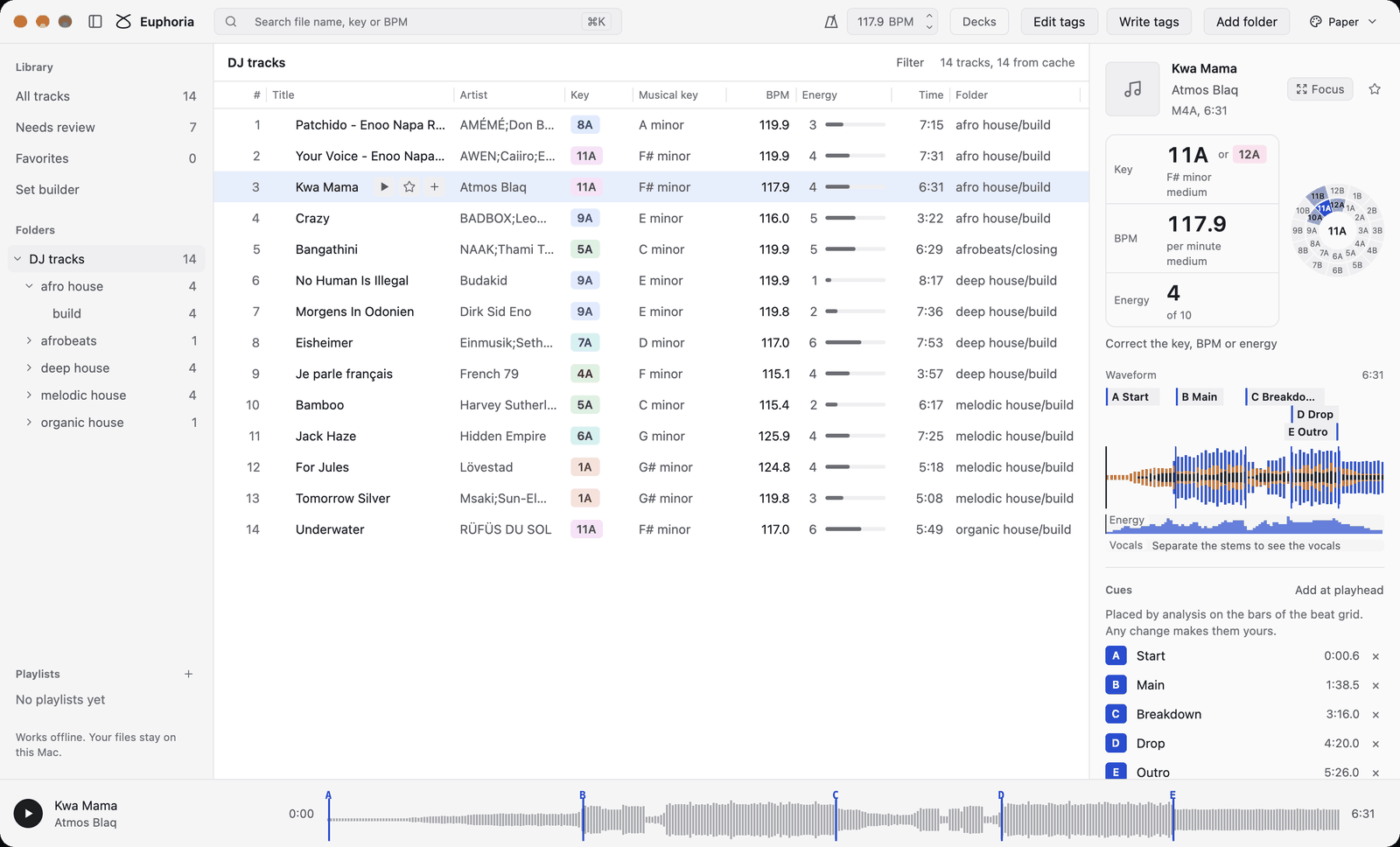
Keys show in Camelot and in musical notation, tempos come from the beat grid, and energy uses Euphoria's own documented scale from 1 to 10.
Select a track and the inspector shows its place on the Camelot wheel, its waveform with cues, what else its key and tempo could be, and the tracks that mix well with it.
What you can do
- Filter by tempo, energy, quality and stage
- Sort and resize every column
- See the tracks that mix well with the selected one
- Look for new and removed files with one rescan
Needs review
A key or tempo rated low confidence, a key that disagrees with the file's tags, or a file that could not be analyzed lands in one list.
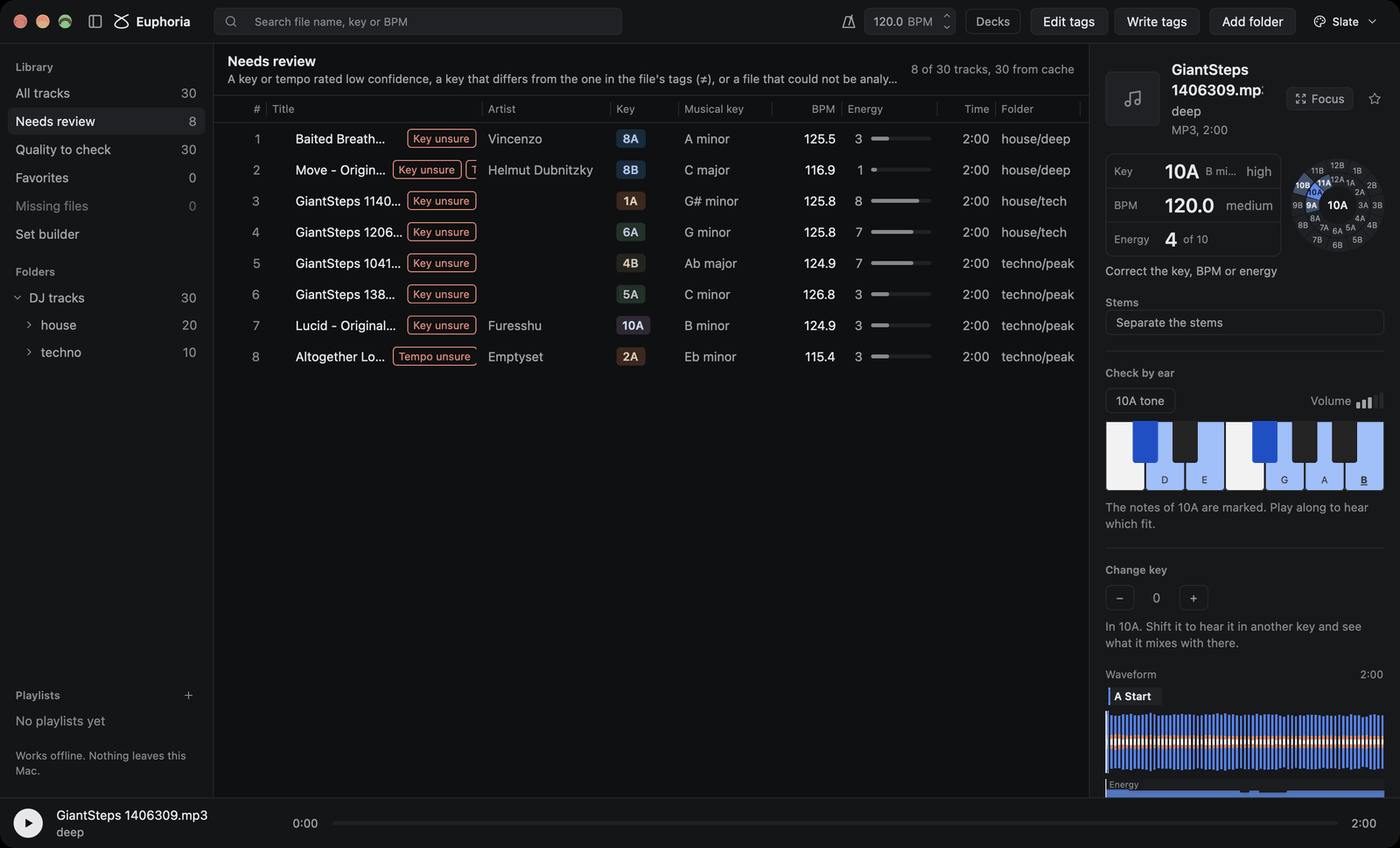
Each track says why it is there: Key unsure, Tempo unsure, or a key that differs from the one in its tags.
Play the notes of the key on the keyboard in the inspector and hear which fit, shift the key to hear what it mixes with there, then correct it in one click.
Read the guideWhat you can do
- Check a key by ear with the marked notes
- See the runner-up key and tempo
- Settle a track once it is right
- Corrections are used by every export
Command palette
One box finds tracks and runs commands. It understands what a DJ types: 8A 124 deep finds tracks in 8A or a key that mixes with it, near 124 BPM, with deep in the name.
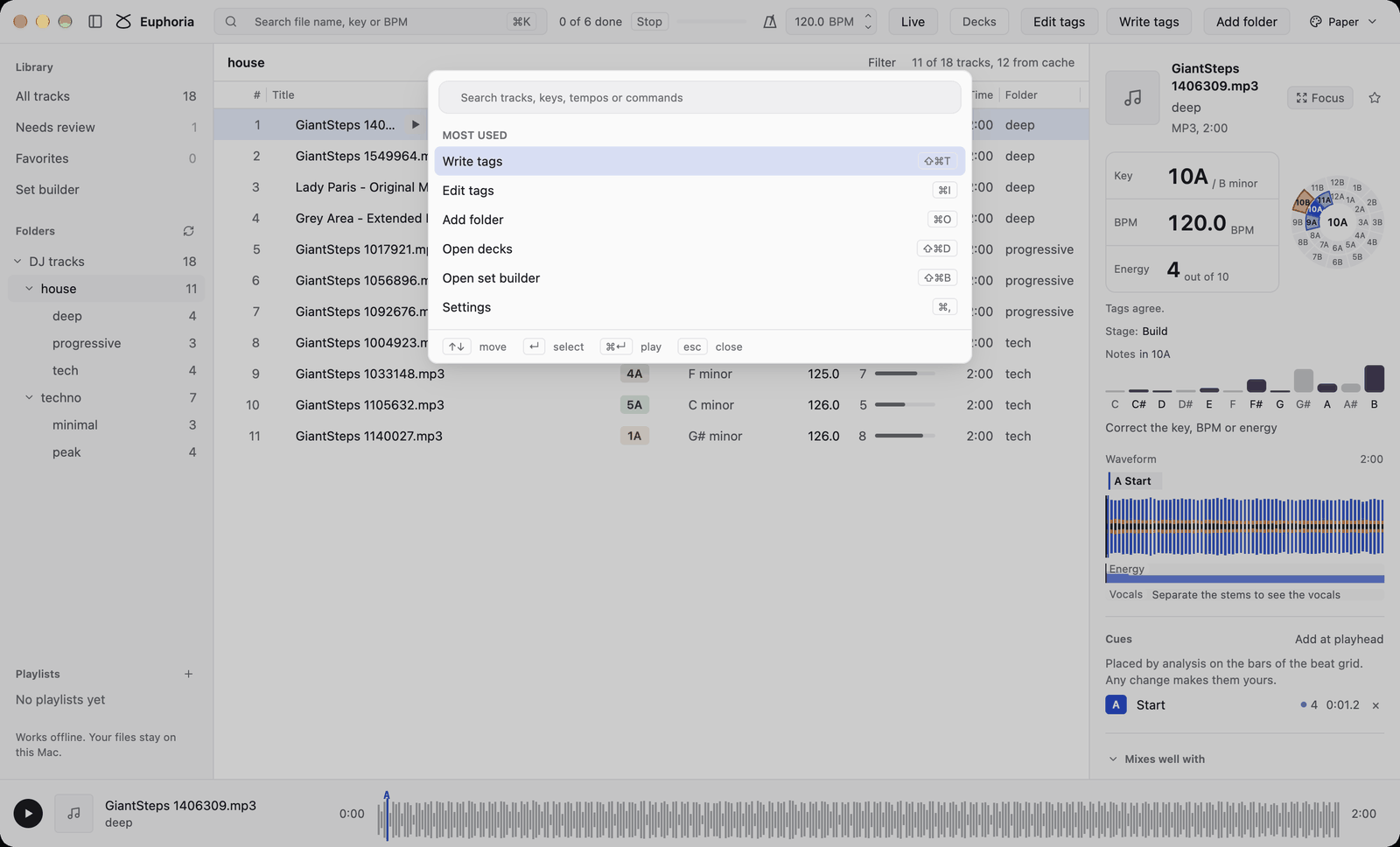
Type a key, a tempo, a tempo range or an energy, mixed with words in any order. The exact key comes first, then one step on the wheel and the relative key.
Under the tracks, every menu command is listed with its shortcut, so the palette teaches the keyboard as you go.
What you can do
- Keys: 8A, Am, A minor
- Tempos: 124, 120-126
- Energy: e6, e7-9, energy 6+
- Enter selects, ⌘Enter plays
Focus view
The focus view gives the selected track the whole window: its sections, a zoomed waveform with cues, its energy and where each stem sounds, on one time axis.
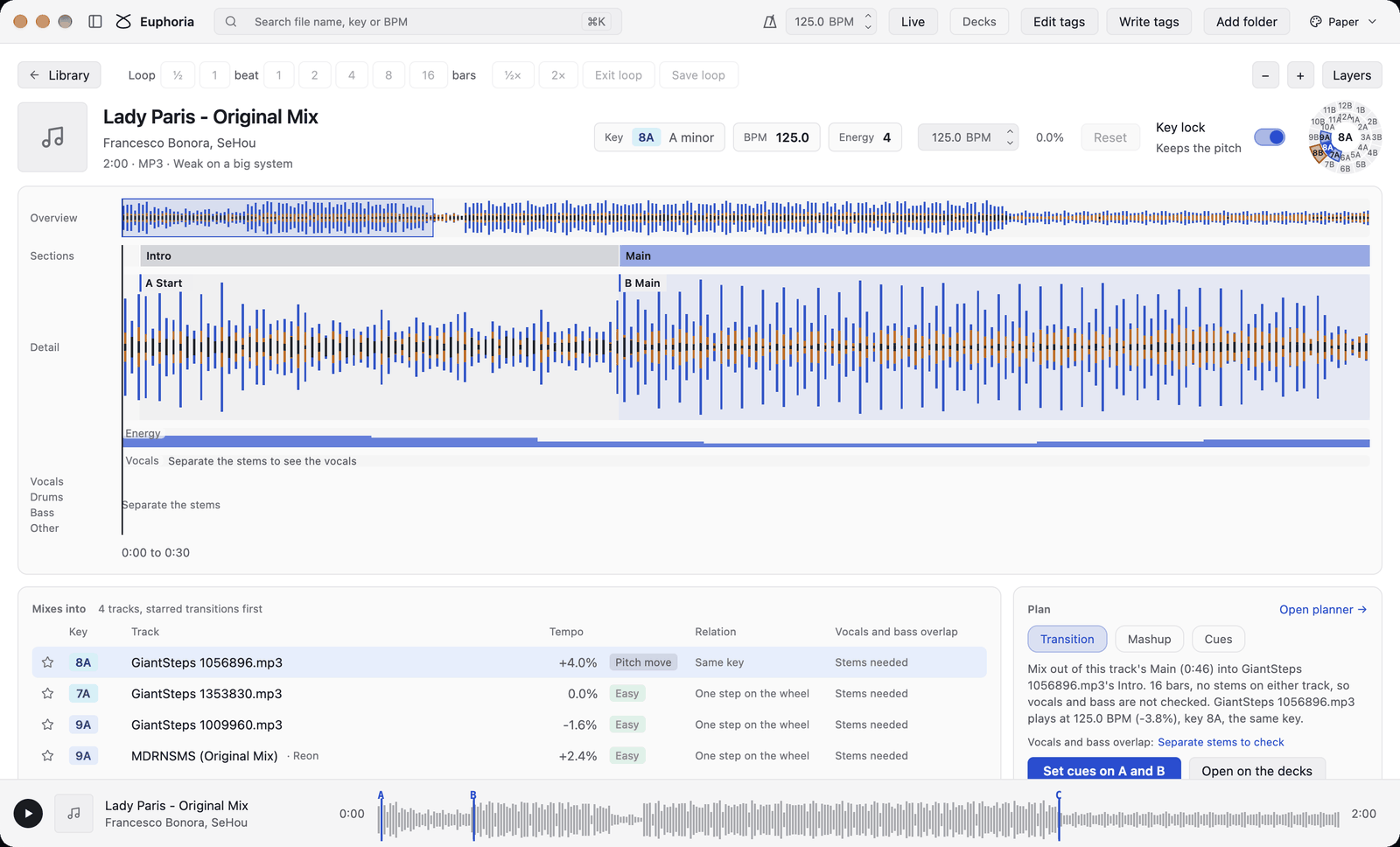
Drag cue flags onto beats, draw a loop with Command held, and change the playing tempo with key lock. Nothing is written to the file.
Pick a track in Mixes into and the Plan card writes the best transition in a sentence: which sections to mix, how many bars, where to swap the bass, and at what tempo.
What you can do
- Loops of ½ beat to 16 bars, saved with the track
- Tempo control of 16% either way, with key lock
- Set the planned cues on both tracks in one click
- Open the transition on the decks
Decks and mashups
Two decks under the table, with sync, key lock, loops and a crossfader, so you can hear a transition before you play it out.
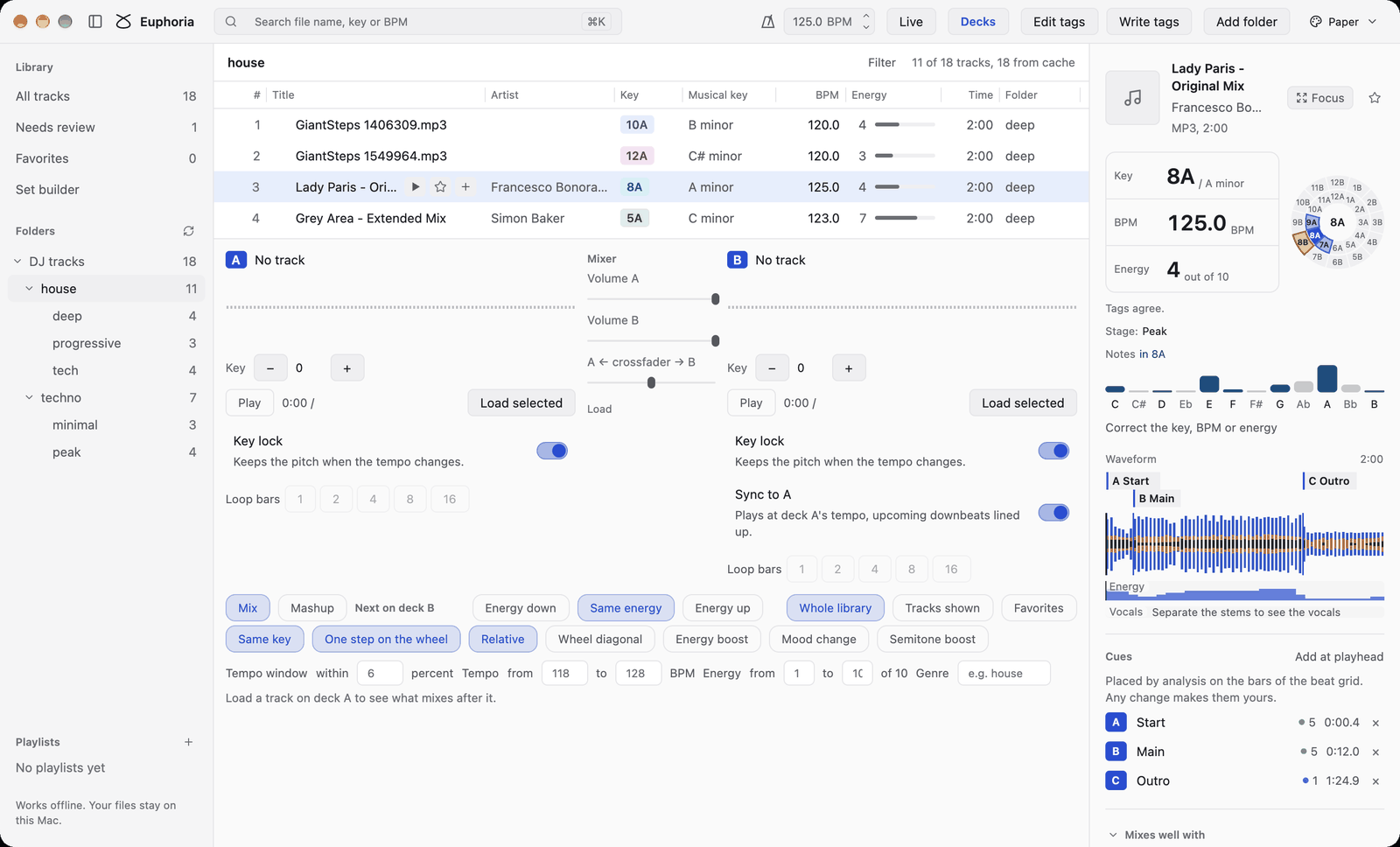
Each deck shows its key, its tempo, its waveform with bars and cues, and its energy over time. Playback lines up the downbeats of both decks.
Next on deck B lists what mixes well after deck A, ranked by key move, tempo and the energy you want next. Mashup mode swaps it for tracks that layer over deck A, with a key shift and stems.
What you can do
- Sync to A and key lock, on by default
- Loop 1 to 16 bars on the beat
- Narrow suggestions by key move, tempo, energy and genre
- Export a mashup to a WAV file
Set builder and playlists
Draw the energy you want across the night, choose a pool of tracks and a length, and Euphoria orders a set along the curve with every mix in a compatible key.
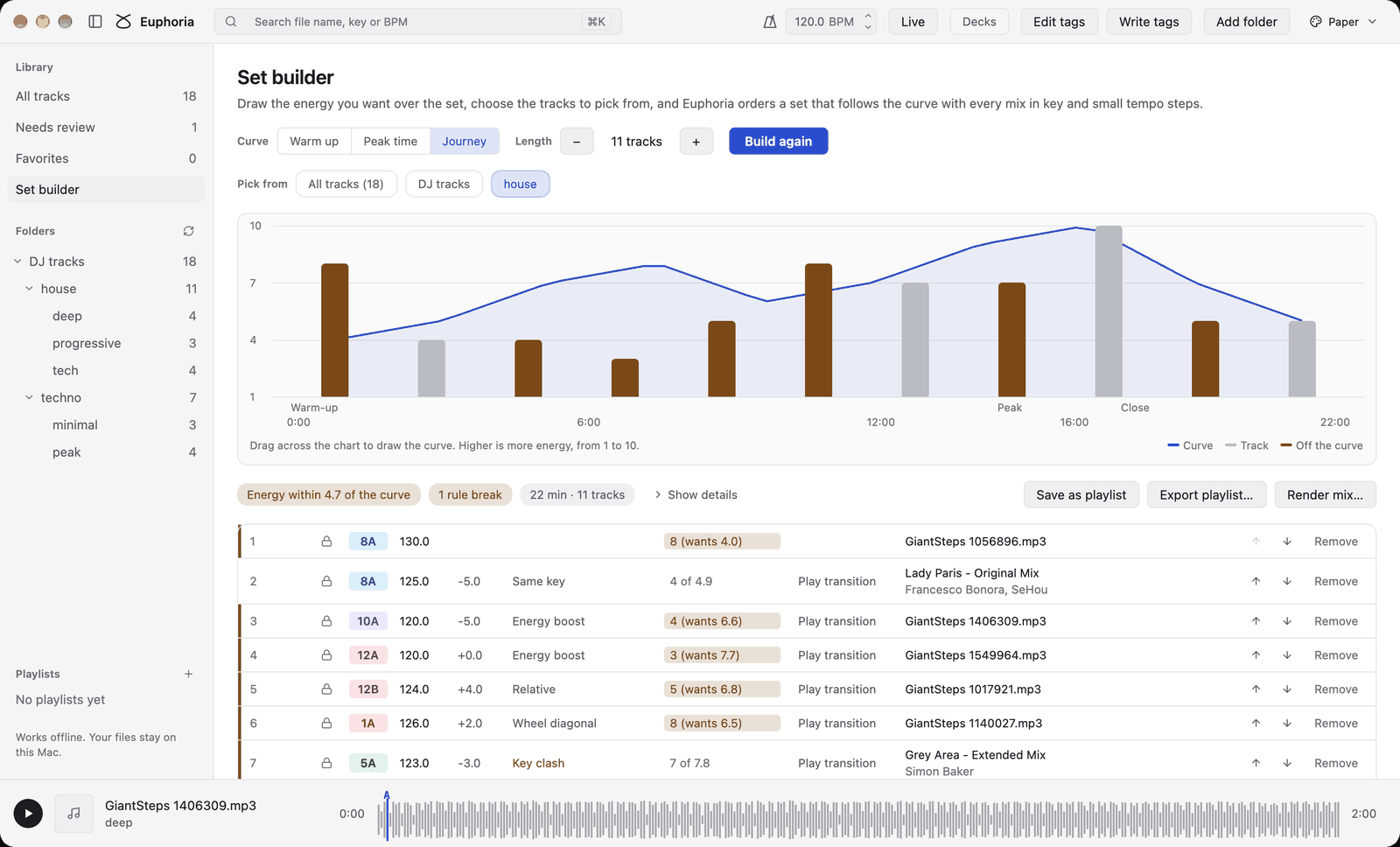
Each track becomes a bar on the curve, so you see at once where the set fits and where it does not. A chip row sums up how far it strays, how many rules it breaks and how long it runs.
Lock tracks, reorder them, play any transition, then render the whole set as one continuous mix or save it as a playlist with its key path, tempo range and energy flow.
What you can do
- Presets: Warm up, Peak time, Journey
- From 2 to 60 tracks, from a folder or a playlist
- Render to FLAC, MP3 with chapters, or WAV
- Export playlists to rekordbox or M3U8
Live
A small panel stays on top and shows the key and tempo of whatever the Mac is playing, with the tracks of your library that mix in.
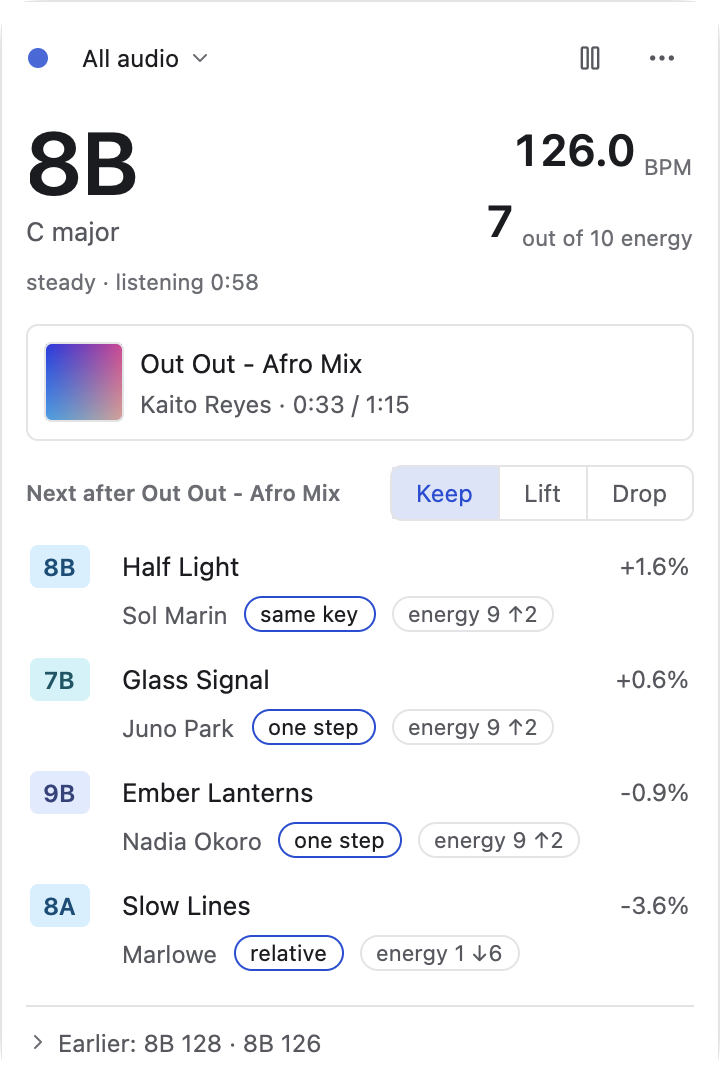
Play a track in rekordbox, Spotify or a browser, or a turntable through an audio interface, and Live names its key, tempo and energy as it plays. Nothing is recorded.
It keeps running in the menu bar when you close the window.
What you can do
- Key and tempo of anything playing
- Tracks from your library that mix in
- Stays on top of other windows
- Lives in the menu bar
Stems
Separate a track into its four stems with the Demucs model, then play the full track, the acapella or the instrumental, or any stem alone.
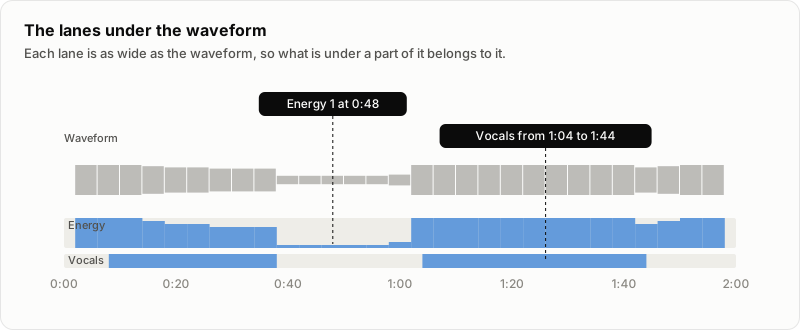
Stems feed the lanes of the focus view and the planner, which use them to find windows where two tracks never sing or play basslines at once.
Export stems, the acapella or the instrumental as WAV files, also in a shifted key.
Read the guideWhat you can do
- Full track, acapella or instrumental
- Solo or mute any stem in the focus view
- Vocals and bass overlap check in the planner
- Export stems as WAV
Tags
Write key, tempo and energy into the tags your DJ software reads, or edit title, artist, genre and other fields across thousands of files at once.
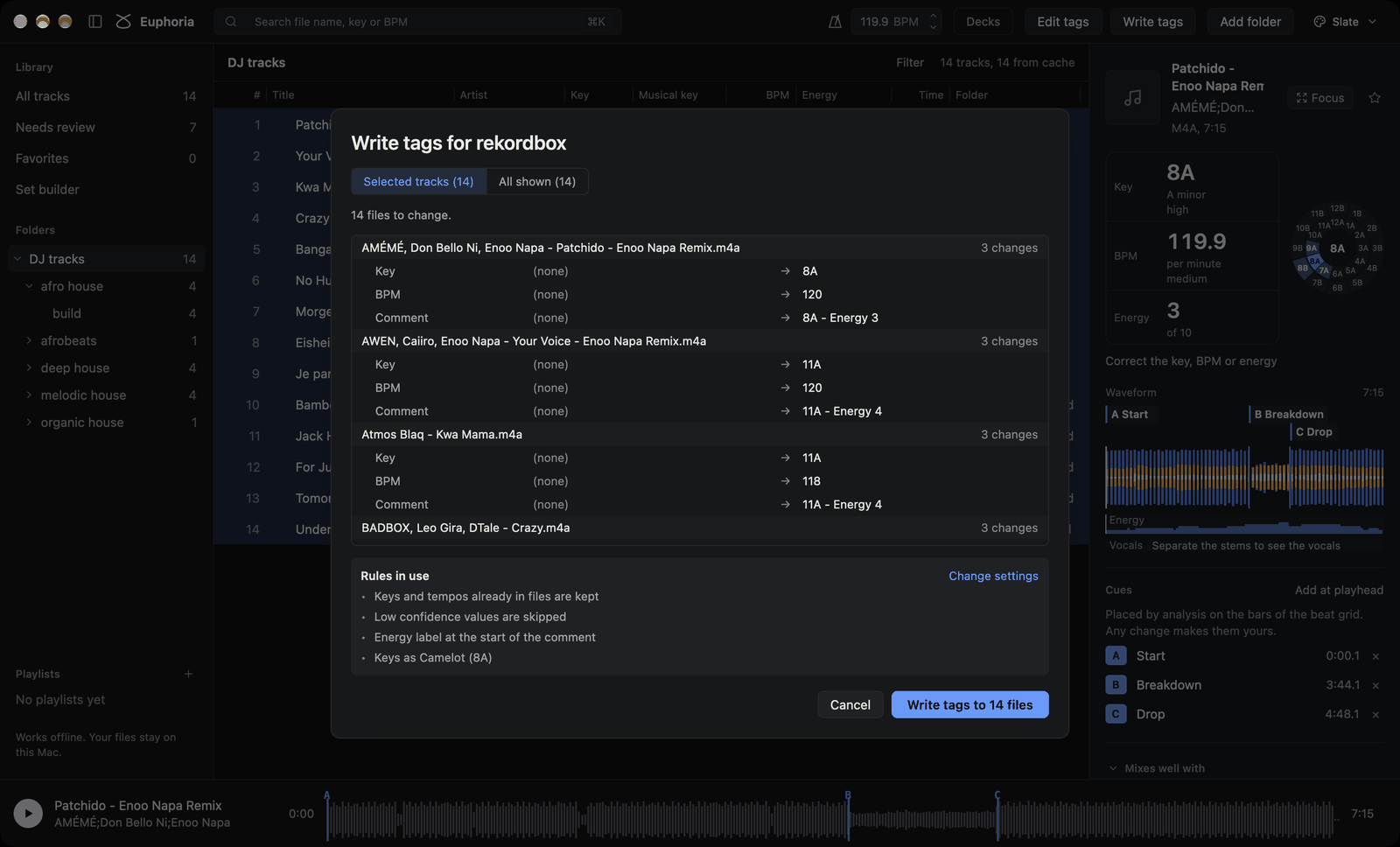
Every file and every field is listed before anything is written. Keys and tempos already in your files are kept, and unsure values are skipped.
Undo puts the old tags back byte for byte, from the app or with euphoria tags undo.
What you can do
- Key notation of your choice, Camelot by default
- Find and replace, prefixes and suffixes
- Fill empty key and BPM fields from the analysis
- Undo the last write
Audio quality
Euphoria checks the codec, the real bit rate and where the content stops, and flags files likely re-encoded from a lower quality source.
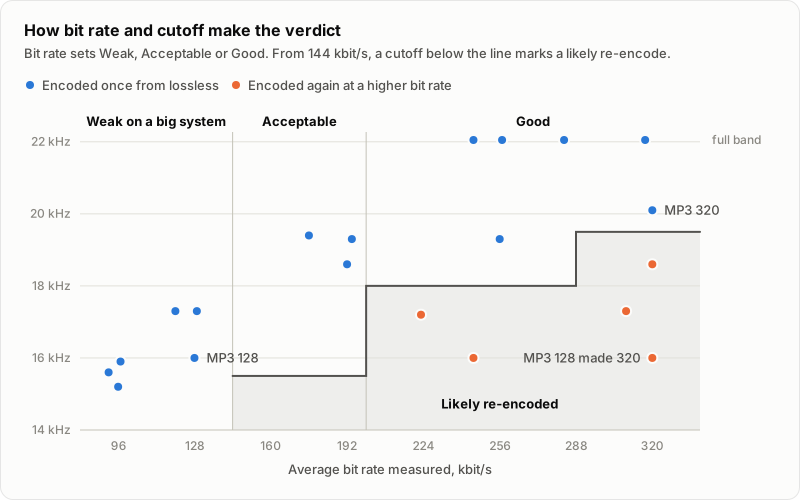
euphoria quality lists the files to replace, worst first, with the reason: low bit rate, fake lossless or damaged. It writes the list as CSV or as an M3U8 playlist too.
Prepare files writes copies that play evenly on a club system: to a loudness target, under a true-peak ceiling, with tuning corrected if you want.
Read the guideWhat you can do
- Real bit rate and cutoff, per file
- Fake lossless detection
- Loudness targets from -14 to -7 LUFS
- ReplayGain tags without touching the audio
Exports and command line
Analyse once, then send keys, tempos, beat grids, cues and playlists to the library you play from, from the app or the command line.
$ euphoria analyze ~/Music/"DJ tracks" --json
      $ euphoria quality ~/Music --m3u8 replace.m3u8
      $ euphoria export rekordbox ~/Music --beat-grid --cues
      $ euphoria export traktor ~/Music --beat-grid --cues
      $ euphoria tags write --serato-markers ~/Music
      $ euphoria tags undo
rekordbox gets an XML file with keys, tempos, energy, saved loops and a playlist per folder. Traktor gets an NML collection. Serato, Engine DJ and VirtualDJ get their cues and grids written in, after a copy is saved.
Every export and analysis is also a command, with table or JSON output you can script.
Read the guideWhat you can do
- rekordbox XML, tested
- Traktor NML, not yet tested
- Serato tags, not yet tested
- Engine DJ and VirtualDJ, not yet tested